whitelist

How to whitelist so a program can work

I use Revo Uninstaller on my Windows 11 PC. I can not use it because it flickers. Revo support told me it was because of WindowBlinds. They said I need to "whitelist" it. How do I do that? 
15,025 views 7 replies
Reply #1 Top

Hello,
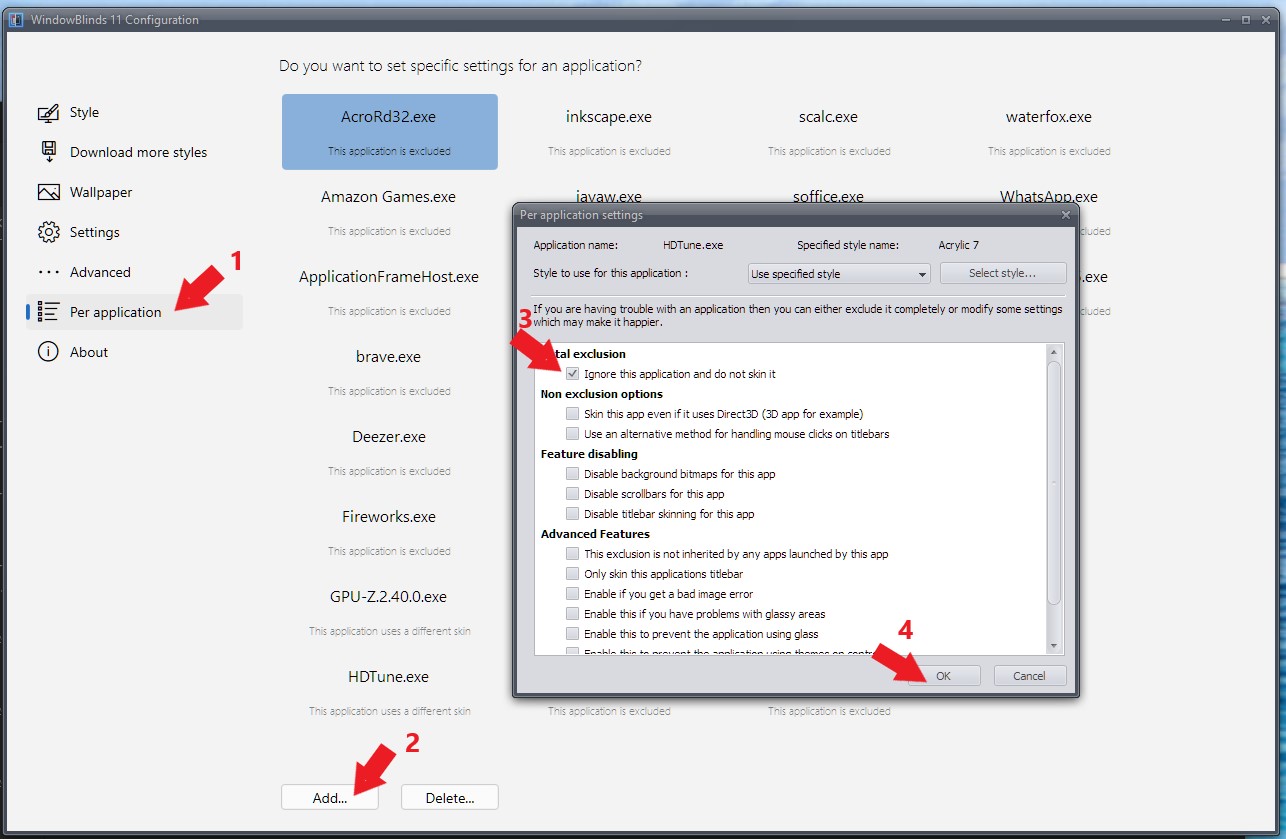
Sorry to hear you are having issues. Try these: 

Thank you,
Basj,
Stardock Community Assistant.

Reply #2 Top

Thanks, Basj, but I still have the same problem. Maybe I just need to get rid of Window Blinds. Stardock seems not to have a fix for this. 

Reply #3 Top

That is strange, I have excluded it and it seem working for me. Please try again.

Thank you,

Basj,
Stardock Community Assistant

Reply #4 Top

Sorry it took me so long to get back with you. I'm running Windows 11. What you're showing me is different. Where are you getting the WindowsBlinds 11 configuration from? I can't find it. Sorry to be a pain, I'm not a computer pro. 

Reply #5 Top

Hello again,

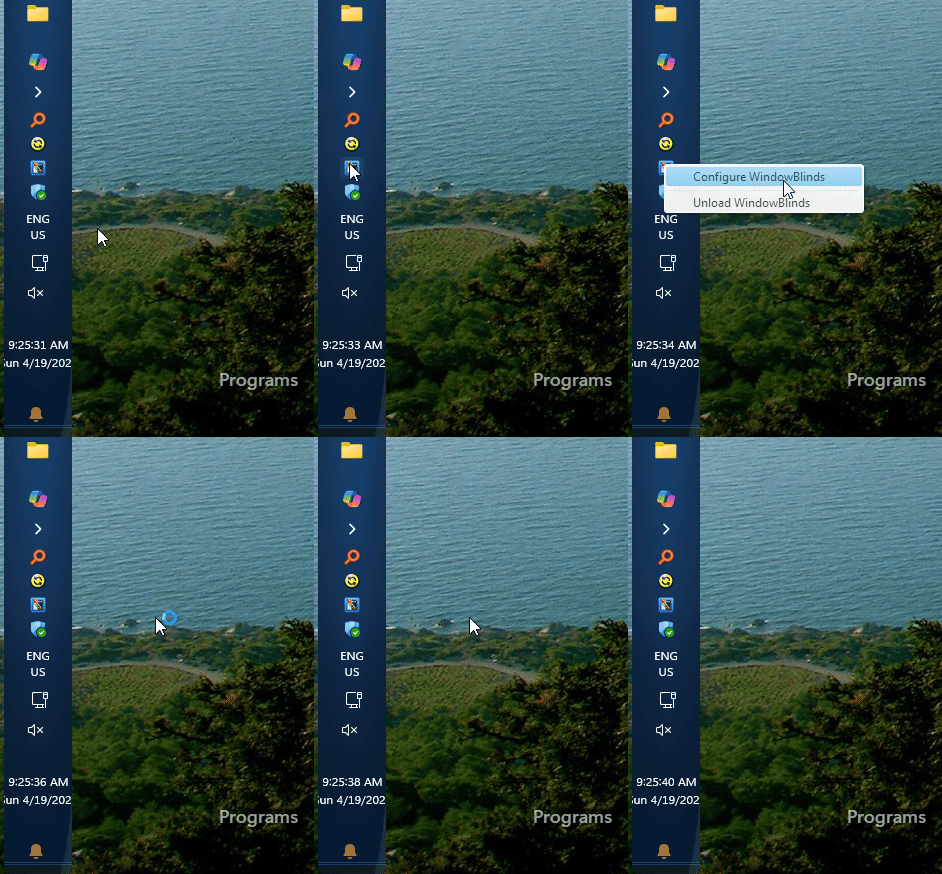
There are few ways to open up Windowblinds configuration window. If you have Windowblinds running in the background, you just need to look for Windowblinds icon in your taskbar tray area and right click on it and select "Configure Windowblinds" that should open up the Windowblinds configuration window. Click on per application tabs and you should get something like my screenshot above.  

Thank you,

Basj,
Stardock Community Assistant

Reply #6 Top

Hi.

Got it. But I'm still having the same problem. Thanks for helping me. 

Reply #7 Top

Hi. 

Okay, I fixed it. It was to be "revo pro exe." instead of "revo exe."

+1 Loading…